How to use PGP — encrypt, sign, and verify
Created
How to use PGP is three jobs, in this order. You encrypt to someone else's public key, you sign with your own private key, and you match the fingerprint before you trust either key. Skip the fingerprint and the other two jobs will cheerfully talk to the wrong person.
The program that does this on a normal computer is GnuPG. The commands below are the short ones from its OpenPGP key management chapter, and the rest of the program is in the GnuPG manual. Examples use a made-up name, Ada, at example.com. Swap in the real address when you have one.
The two keys
A PGP key is a pair, and only one half of it ever leaves your machine.
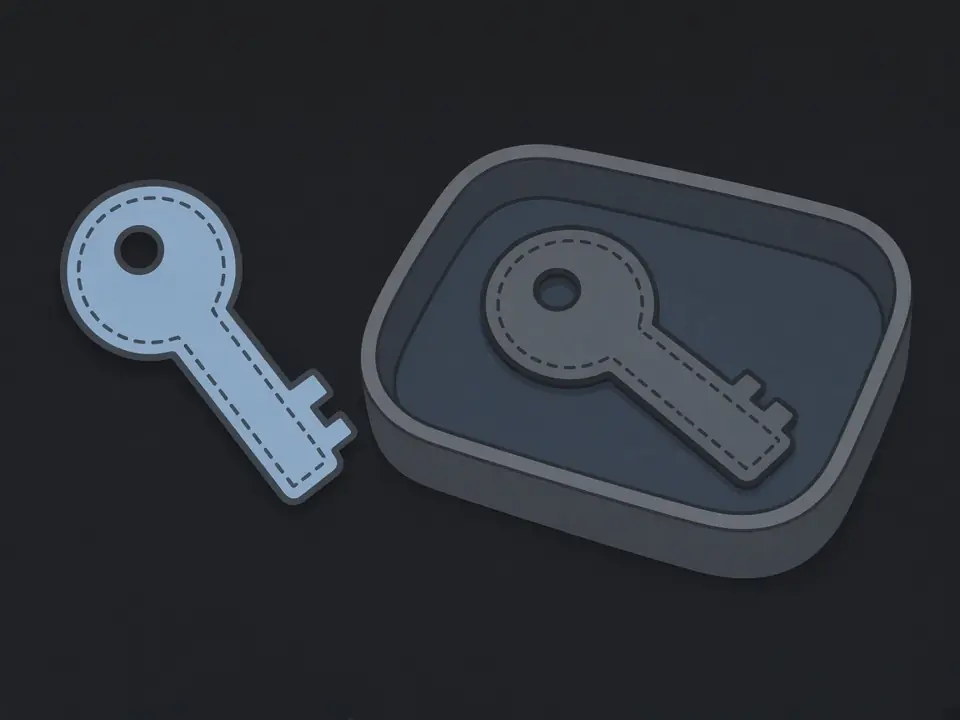
The public half is the one you hand out. People use it to encrypt messages to you, and to check signatures you made. The private half decrypts what was encrypted to you, and it makes the signatures. It is protected by a passphrase, which is not the key. Lose the passphrase and the private key is still there, locked. Lose the private key and no passphrase in the world reads the old messages.
The mistake is treating the pair as one file. GnuPG can export the secret half with --export-secret-keys. If someone asks you to run that and send them the result, they are asking for the key itself. The file you send people is the public half, from --export --armor, and even that file is only as good as the fingerprint check below.
Make a key
GnuPG makes the pair with one command, and the defaults are the ones to keep.
People meet --full-generate-key first, because older guides send them there. It asks a run of questions about algorithm and key size. The usual result is a key that the writer "improved" into something other software argues with. The current short command creates a standard key with a signing primary key and an encryption subkey, which is the shape you want:
gpg --quick-generate-key "Ada <ada@example.com>"On a normal terminal it stops once and asks you to continue, then asks for a passphrase. That prompt is a small window from the passphrase agent, not a line in the terminal, and it is easy to miss behind other windows. Type a passphrase you can remember and that you do not reuse. GnuPG then prints the new key, including a long fingerprint, and stores a revocation certificate next to it. Leave that certificate where it is. You want it on the day the passphrase is gone or the machine is stolen, not before.
--full-generate-key is still the right command when you already know which algorithm you need. If you do not know, you do not need it. The same chapter of the manual documents both.
Encrypt a message, then read it
You encrypt to their public key. Only the matching private key reads the result.
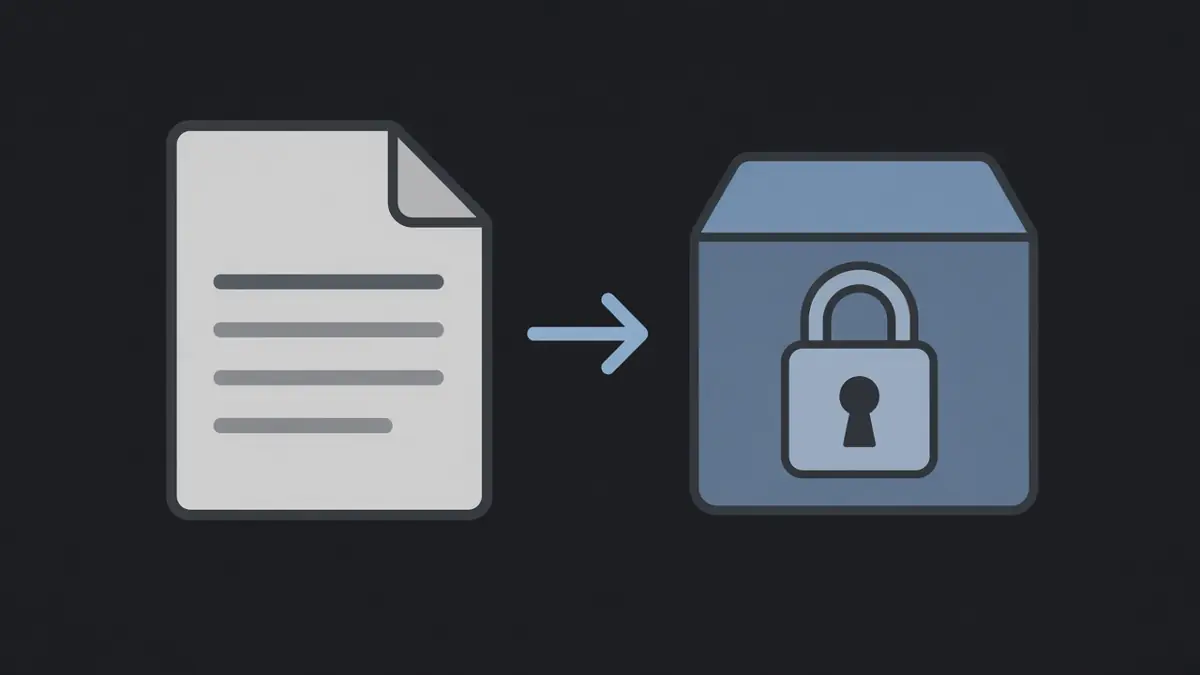
You need their public key on your machine first. A file they sent, or a key you fetched, is imported with gpg --import their-key.asc. Importing does not mean you trust it. It means GnuPG can see it. Then, with a text file called message.txt:
gpg --encrypt --armor --recipient ada@example.com --output message.asc message.txt
--armor is what makes the block of text that starts with -----BEGIN PGP MESSAGE-----. Without it you get binary, which is miserable to paste. --recipient is the person whose public key you are using. If that key is not on the machine, GnuPG stops and says so, which is better than producing a file nobody can read.
You cannot read message.asc back with your own key, unless you encrypted it to yourself as well. That surprise is normal. Add your own address as a second --recipient when you want a copy you can still open. Decrypting, on Ada's machine, prints the original text:
gpg --decrypt message.asc
GnuPG asks for Ada's passphrase, then writes the plaintext to the terminal. --output message.txt puts it in a file instead. A wrong passphrase fails here. A missing private key fails here. A public key, however correctly imported, does not get you past this step.
Sign, and check the signature
A signature shows that the text was not changed after signing, and which key signed it.
Encryption hides the message. A signature does the other job: anyone with the public key can see the text and check that it still matches. For a note you want read in place:
gpg --clear-sign --output note.asc note.txtThe file is the original text with a signature block under it. Checking it is one command:
gpg --verify note.ascA match prints "Good signature" and the name on the key. Under that, current GnuPG often prints a warning that the key is not certified with a trusted signature. Read that warning literally. "Good signature" means the math matches the key already stored on your machine. It does not mean you have ever checked who that key belongs to. The warning is GnuPG refusing to pretend the fingerprint check has been done.
A bad signature, or a text edited after signing, fails --verify. Do not "fix" that by importing a fresh key from the same message and verifying again. That proves the signature matches the key that came with it, which any forger can arrange.
The fingerprint
The fingerprint is how you tell the key named Ada from another key that also says Ada.
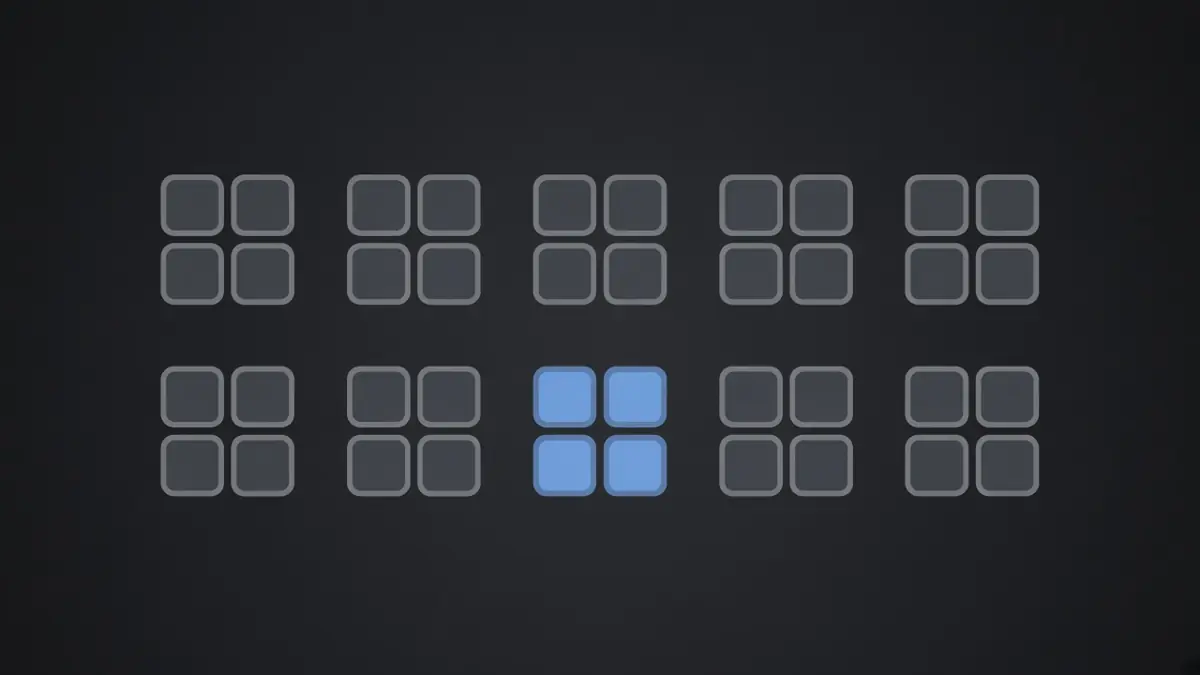
Names on keys are typed by whoever made the key. Two keys can carry the same name. The fingerprint is a long hex line GnuPG prints in small groups:
gpg --fingerprint ada@example.comCompare it in those groups to a copy you already have, written down somewhere that did not arrive in the same email as the key file. One group that differs is a different key. Stop there. The name, the email, and a friendly signature block do not repair a mismatch.
This is the step people skip, because the encrypt command already worked and the signature already said "good". Both of those results are about the key on your disk. The fingerprint is the only one about the person. When a site offers you a key file and tells you to import it before you have anything to compare, the file is asking you to skip this step. ZonStatistic does not publish a Torzon fingerprint, and a page that does, next to a key it also hosts, has not saved you the comparison.
What a key will not fix
A correct key will not make a dead onion address load.
PGP checks a message and a key. It does not build a circuit, and it does not tell you that an address is the current one. If Tor Browser cannot reach the site at all, that is onion site unavailable, and the fix is a circuit or a different address, not another key. If the site loads and you still need the strings ZonStatistic lists, they are on the Torzon tor link page, not in a signature block.
Questions people actually hit
What if the fingerprint does not match?
Stop. The key is not the one you meant, even when the name on it is right. Remove it and ask for the key again through a channel you already trust.
Can I read a message with only the public key?
No. The public key encrypts. Reading takes the private key made with it, and the passphrase for that key.
GnuPG says the signature is good, but the key is not trusted. What does that mean?
Good signature means the signature matches the key stored on your machine. The trust warning means you have not decided that this key belongs to the person named on it. That decision is the fingerprint check, and GnuPG does not make it for you.